
Extended Context Sidebars
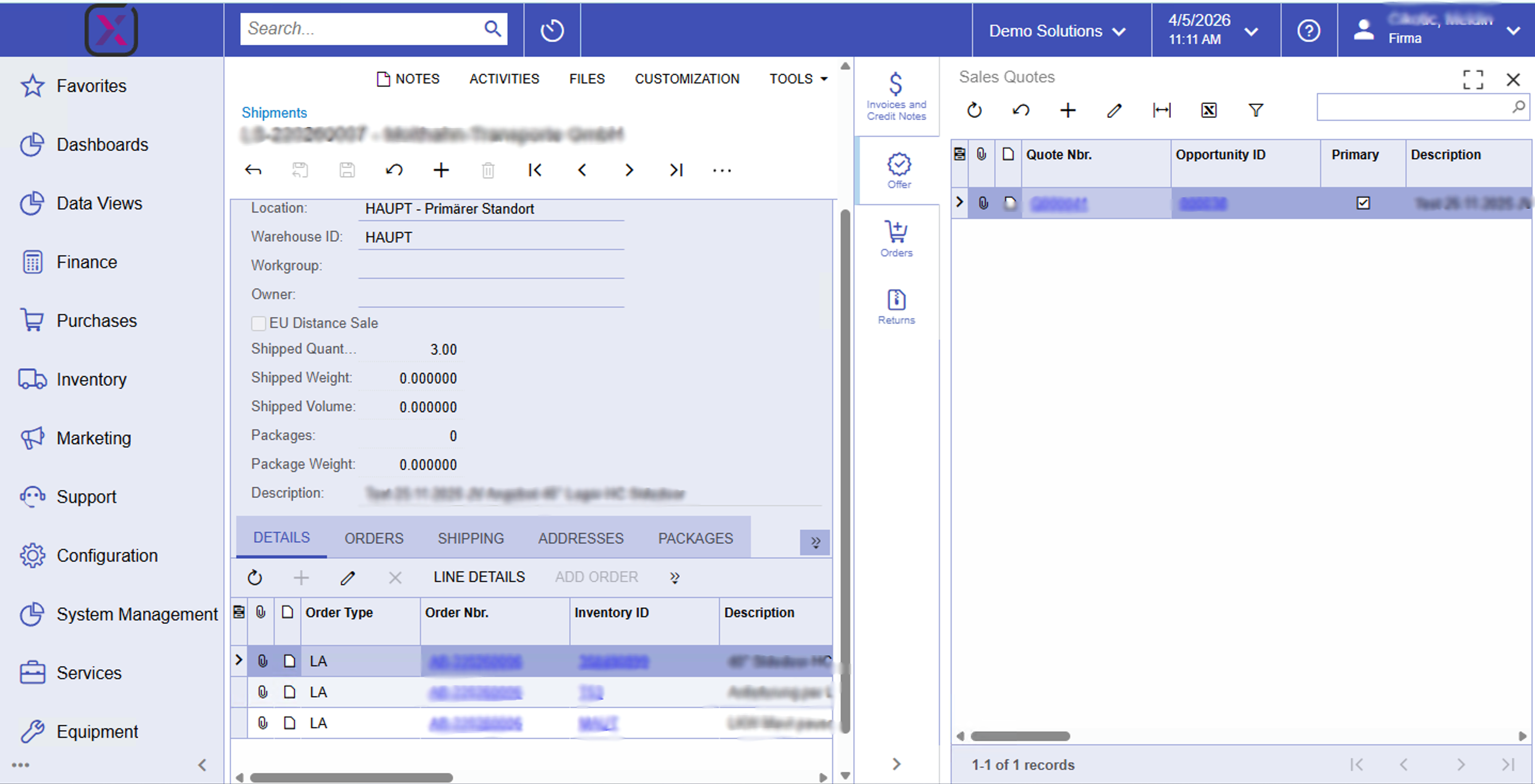
- Stays in one layout: the main form stays put while a second column loads related grids or previews you choose from the rail
- Fewer detours: answer “what shipments belong to this invoice?” or “which orders sit on this customer?” without a module scavenger hunt
- Consistent pattern: the same sidebar interaction appears across AR, sales, and logistics screens so training carries over
- Dense work stays readable: lists such as shipments or sales orders open with familiar toolbar actions next to the record you already have open
- Covers the flows shown in the screenshots—customer cards, quotes, sales orders, invoices, and shipment documents—with tabs that change by screen
- Helps handoffs: service, sales, and warehouse roles see linked history faster when everything is one click away on the same page
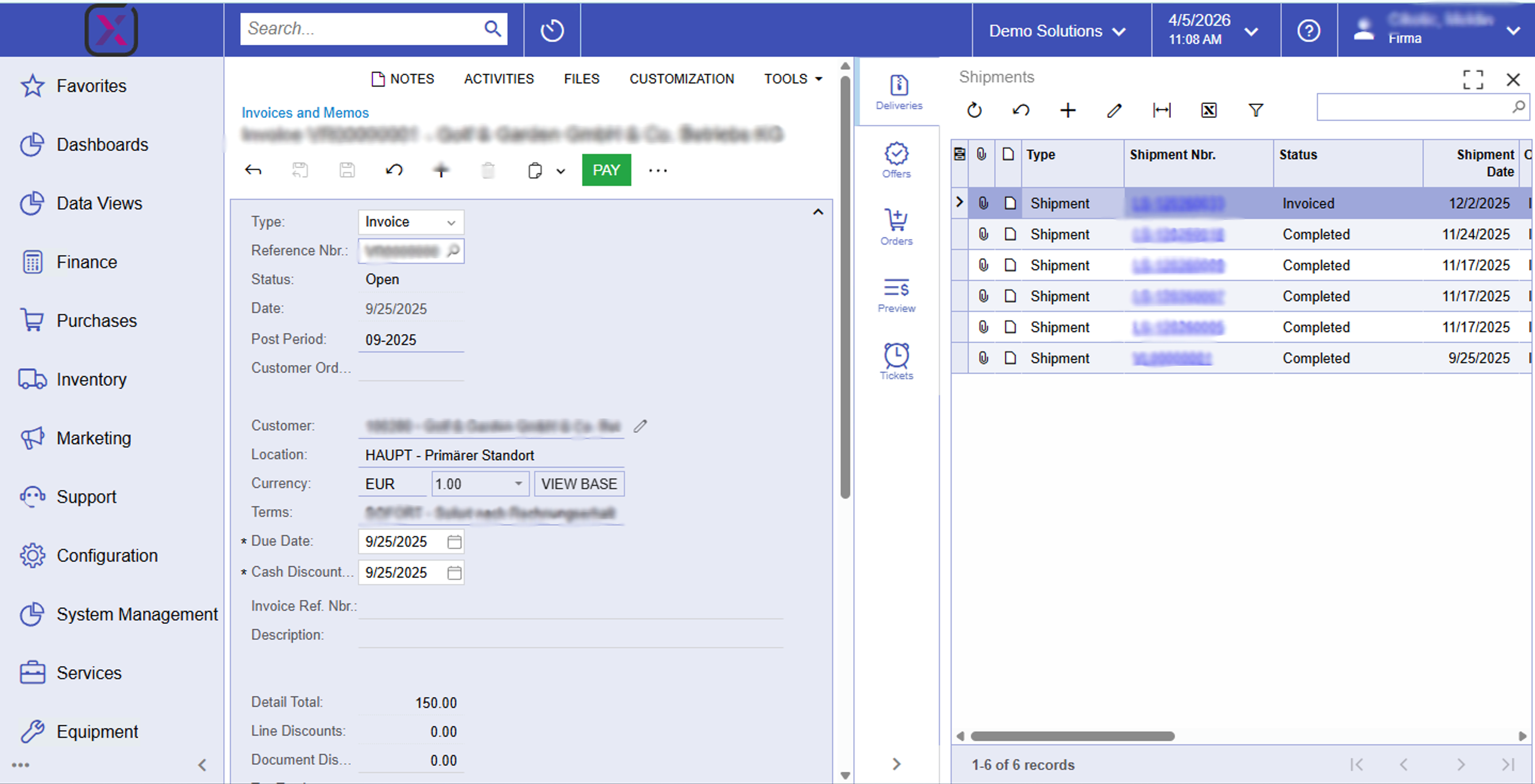
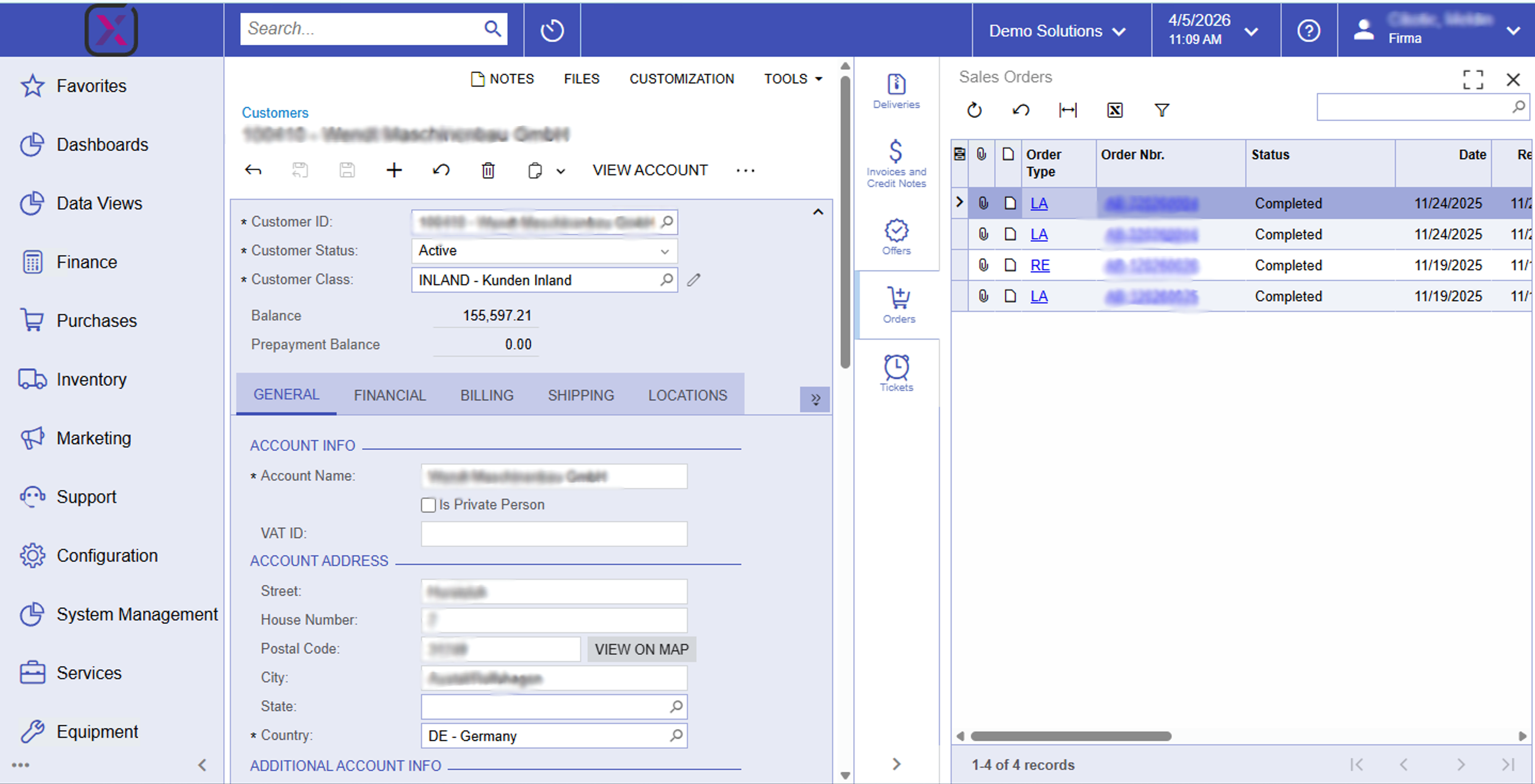
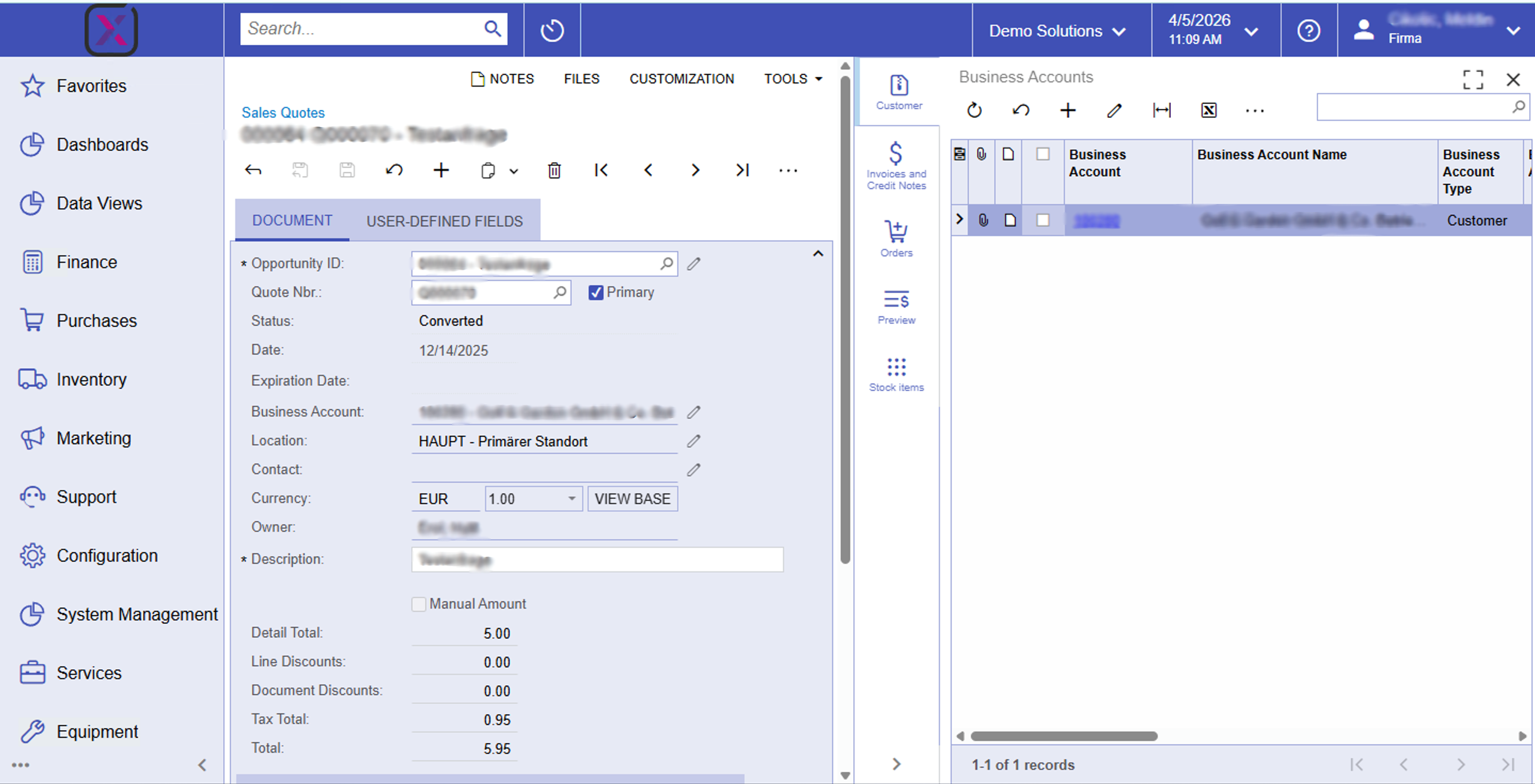
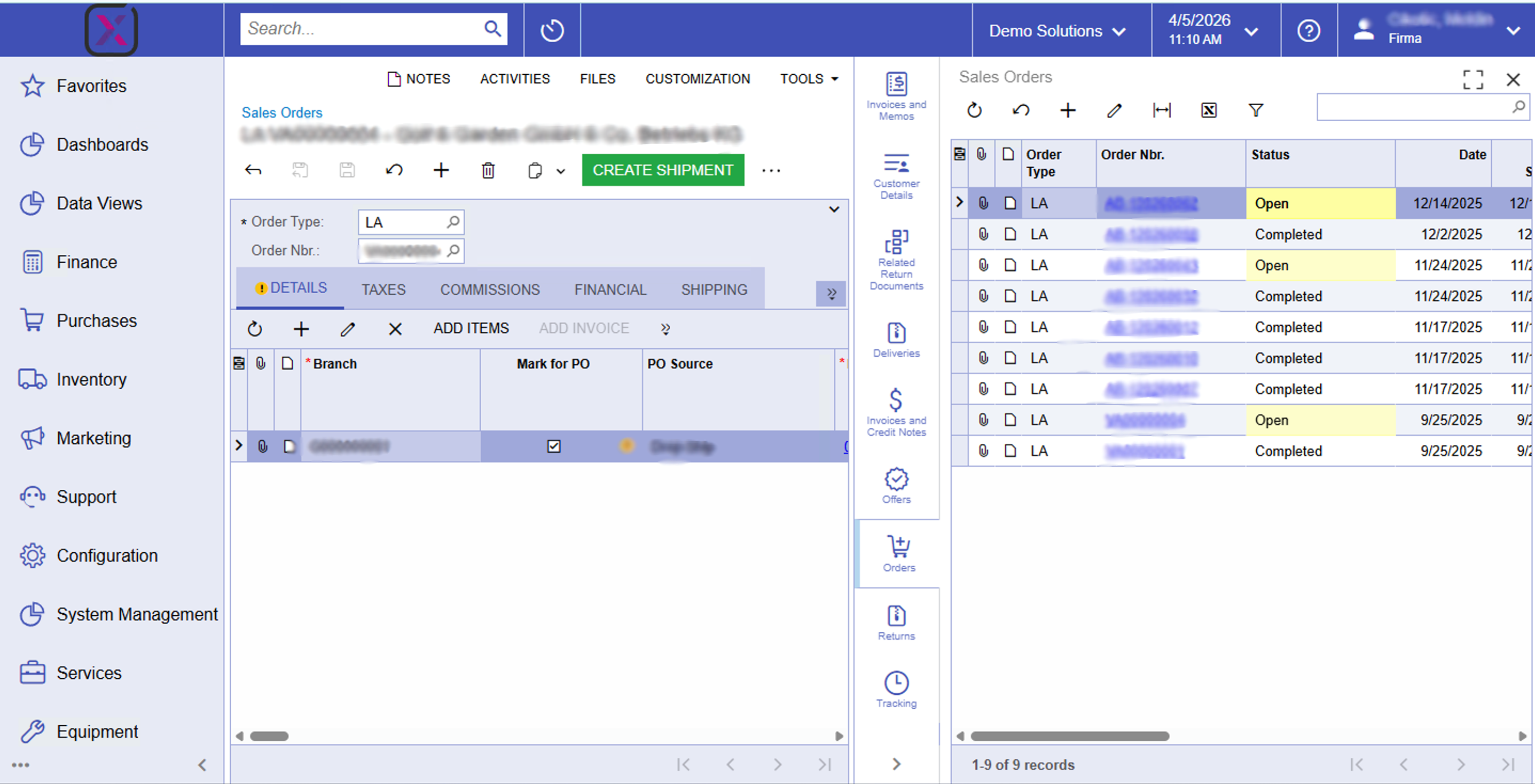
This customization adds a vertical strip of context actions to the right of key ERP screens. Pick an icon and the system opens a dedicated panel with the related dataset—still on the same page as your primary document. The goal is straightforward: reduce how often people open new tabs or hunt menus just to confirm linked activity. The screenshots walk through several real combinations: on an invoice, “Deliveries” surfaces a shipments grid; on a customer, “Orders” opens sales orders; on a quote, “Customer” shows linked business accounts; on a sales order, the rail includes returns, tracking, deliveries, and more; on a shipment, “Offer” lists related sales quotes. Exact tab labels and counts can vary by screen and how your site is configured, so treat the feature list below as what is visible in the demo captures—not an exhaustive catalog of every possible sidebar everywhere in the product.
How the panel behaves
You work in the standard header and lines as usual. The sidebar sits between that content and the far edge: icons for each available context view, then an expandable grid or reader pane. Switching icons swaps the panel content while the underlying document remains active, which keeps orientation in long sessions.
What the sample screenshots show
Invoice and memo: shipments beside the bill while other icons cover offers, orders, preview, and tickets. Customer: orders, invoices, offers, deliveries, and tickets from one profile. Sales quote: customer linkage plus invoices, orders, preview, and stock items. Sales order: a wider rail including customer details, invoices, deliveries, offers, returns, tracking, and related returns. Shipment: invoices, linked quotes, orders, and returns—with quote results labeled as sales quotes in the panel header.
An AR clerk is on an open invoice and needs proof of what shipped. They tap Deliveries in the rail; the Shipments grid appears with statuses and dates, still beside the invoice totals. No new window, no lost scroll position on the main form—just the answer in context.
Invoices and Memos (AR301000) — sidebar views visible in screenshot
- Function: “Deliveries”Opens a Shipments grid tied to the invoice (status, shipment number, dates)
- Function: “Offers”Context list for related quotes or commercial offers
- Function: “Orders”Jump to sales order activity linked to the invoice
- Function: “Preview”Document-style preview without leaving the invoice
- Function: “Tickets”Service or case-style follow-ups adjacent to the AR document
Customers (AR303000) — sidebar views visible in screenshot
- Function: “Deliveries”Outbound/delivery-oriented related lines from the customer context
- Function: “Invoices and Credit Notes”AR documents connected to the account
- Function: “Offers”Quote-level activity for the customer
- Function: “Orders”Sales orders list (grid with type, number, status, date in the sample)
- Function: “Tickets”Support-style items associated with the customer
Sales Quotes (CR304500) — sidebar views visible in screenshot
- Function: “Customer”Business accounts grid (e.g. primary customer linkage for the quote)
- Function: “Invoices and Credit Notes”Billing history relevant to the quote’s account
- Function: “Orders”Sales orders that relate to the opportunity or quote
- Function: “Preview”Readable preview of quote output
- Function: “Stock items”Item-centric context next to the quote
Sales Orders (SO301000) — sidebar views visible in screenshot
- Function: “Invoices and Memos”Invoice-side documents tied to the order
- Function: “Customer Details”Account context without navigating away from the SO
- Function: “Related Return Documents”Return paperwork associated with the order
- Function: “Deliveries”Fulfillment-oriented related records
- Function: “Invoices and Credit Notes”AR views aligned with the sales order
- Function: “Offers”Quote history connected to the order
- Function: “Orders”Related sales orders grid (e.g. siblings or roll-ups in the sample)
- Function: “Returns”Return flows linked to the order
- Function: “Tracking”Shipment tracking style information from the order context
Shipments (SO302000) — sidebar views visible in screenshot
- Function: “Invoices and Credit Notes”Billing documents related to the shipment
- Function: “Offer”Opens a Sales Quotes list tied to the shipment context
- Function: “Orders”Sales orders feeding or tied to the shipment
- Function: “Returns”Return documents relevant to shipped lines